A complete guide to RE-KORD — from installation to the Plectr rhythm game.
Step 1
Installation
Go to the Download page. On the machine with your music, install and run the Server — it already includes the UI. On other devices, install the standalone Client and enter the server address.
download
Direct download: on each machine choose Server or Client for your OS (Windows .7z, Linux AppImage, Android .apk), extract if needed, then launch RE-KORD.
laptop
Client only: use this build when the server already runs elsewhere (NAS, home PC, Cloudflare tunnel). Enter the server URL on first launch.
smartphone
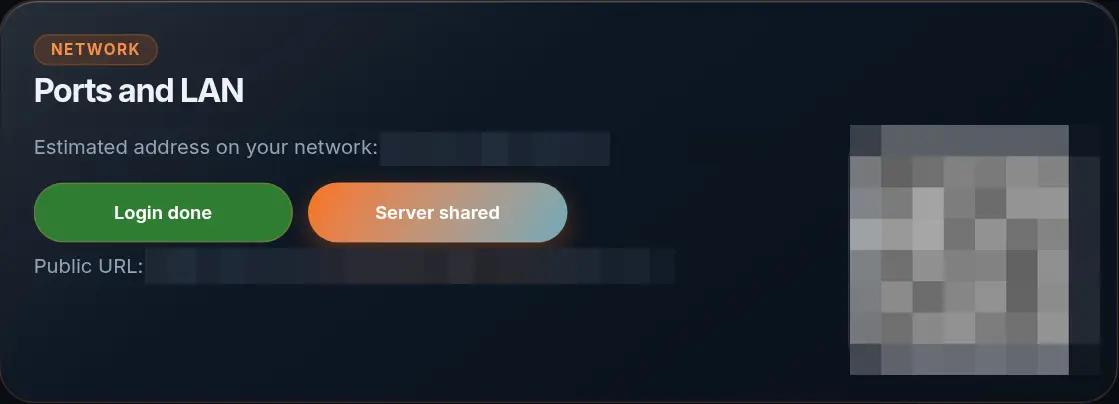
Android: install the Client APK on your phone, then scan the QR code from Settings → Network on the server (generated locally) — background playback via MediaService, optional ExoPlayer, Cast to Google Home and lock-screen controls.
Library root: on first launch you'll be asked to choose your main music folder. You can change it any time from Settings → Library root. All RE-KORD account data is stored in .kord/ inside this folder.
Step 2
First steps
After installation, the setup differs depending on whether you run everything on one machine or connect a client to an existing server.
desktop_windows
Client + Server
Everything on one PC: server, UI and library.
1
Launch RE-KORD. On first run, pick your library root — the main folder that contains your music.
2
Create a local profile (your username on this machine). Favorites, playlists and stats are saved per profile.
3
Wait for the first library scan to finish. Albums and artists then appear in Library and on the Dashboard.
4
Open the Dashboard for an overview, then browse Library and press play on any track.
laptop
Client only
UI only — the library and server run on another machine.
1
Make sure RE-KORD Server is already running (home PC, NAS, always-on machine, or Cloudflare tunnel).
2
Launch the Client and enter the server address — e.g. http://192.168.1.10:3001 on LAN, or the public tunnel URL.
3
Sign in with an existing profile or create a new one. Profiles and library data live on the server, not on this device.
4
Browse Library, queue tracks and listen — same UI as on the server, remotely.
tips_and_updatesUseful tips
Server, Client and multiple profilesLibrary folder from another device
Step 3
Library
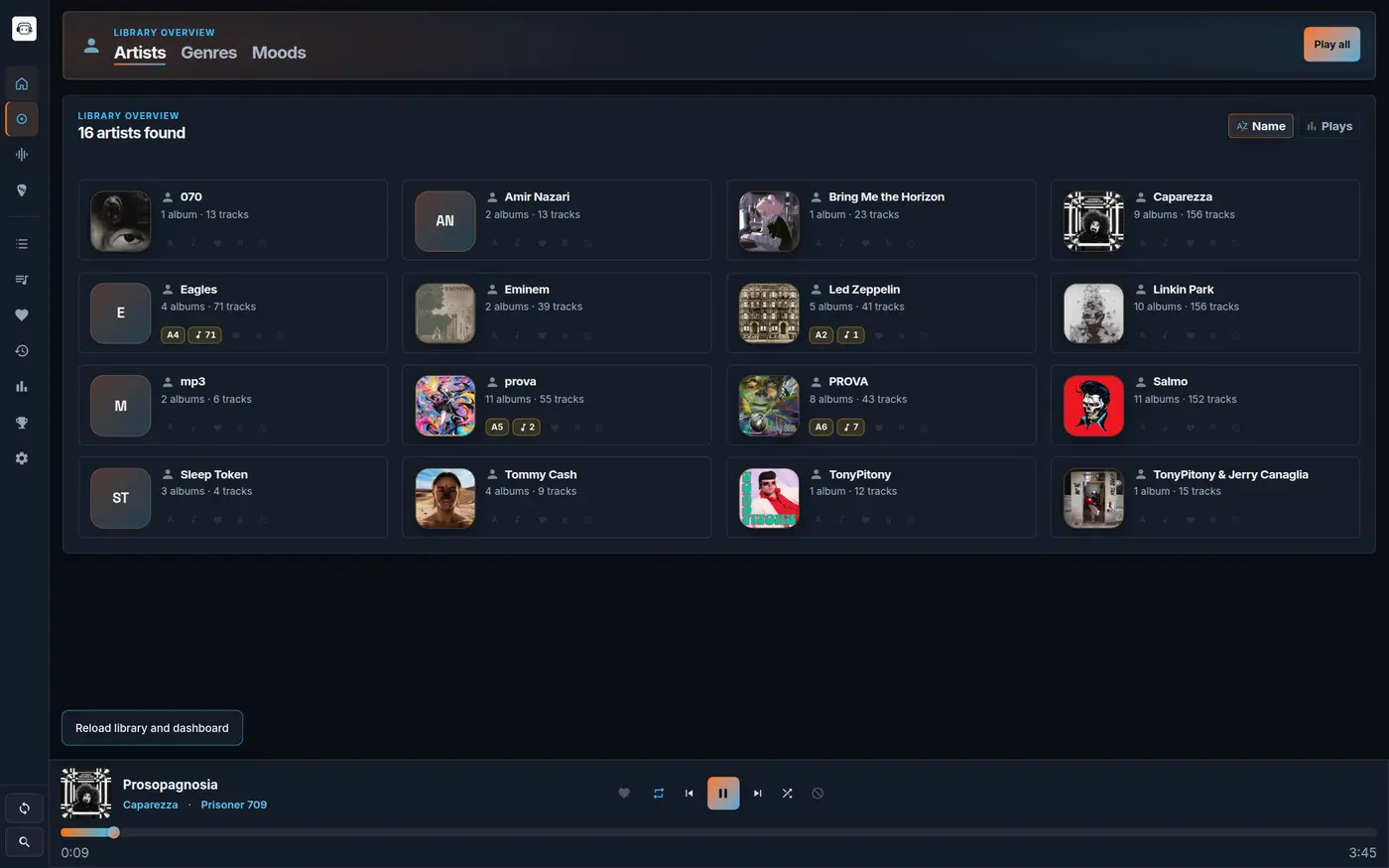
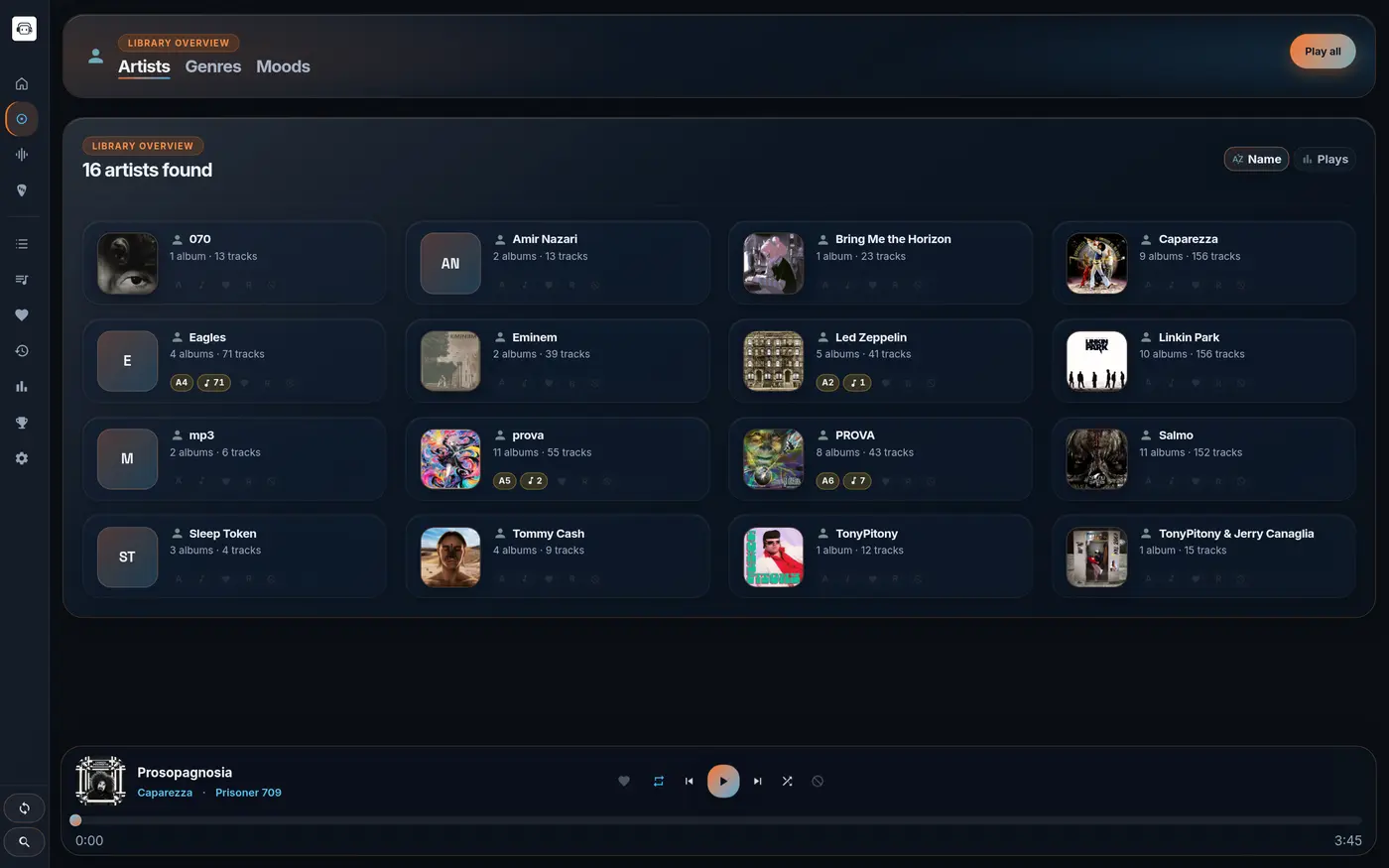
The Library is the heart of RE-KORD. Browse by artist, genre and mood, search instantly with Ctrl+K, and manage tags, lyrics and artwork without leaving the app.
Library → Artists, Midnight theme
Edit metadata
Open any album or track sheet to edit title, artist, genre, year, mood, and paste synced LRC lyrics or plain text.
Smart shuffle
Exclude individual tracks, full albums or genres from shuffle. Exclusions are saved per profile and don't affect other accounts.
Favorites & playlists
Add tracks to favorites with one click. Create and reorder unlimited playlists for themed sessions or genre-based mixes.
Quality alerts
The Dashboard automatically flags albums without artwork, incomplete metadata and folders with loose tracks.
auto_awesomeSonic Nebula — the universe of your music4.3
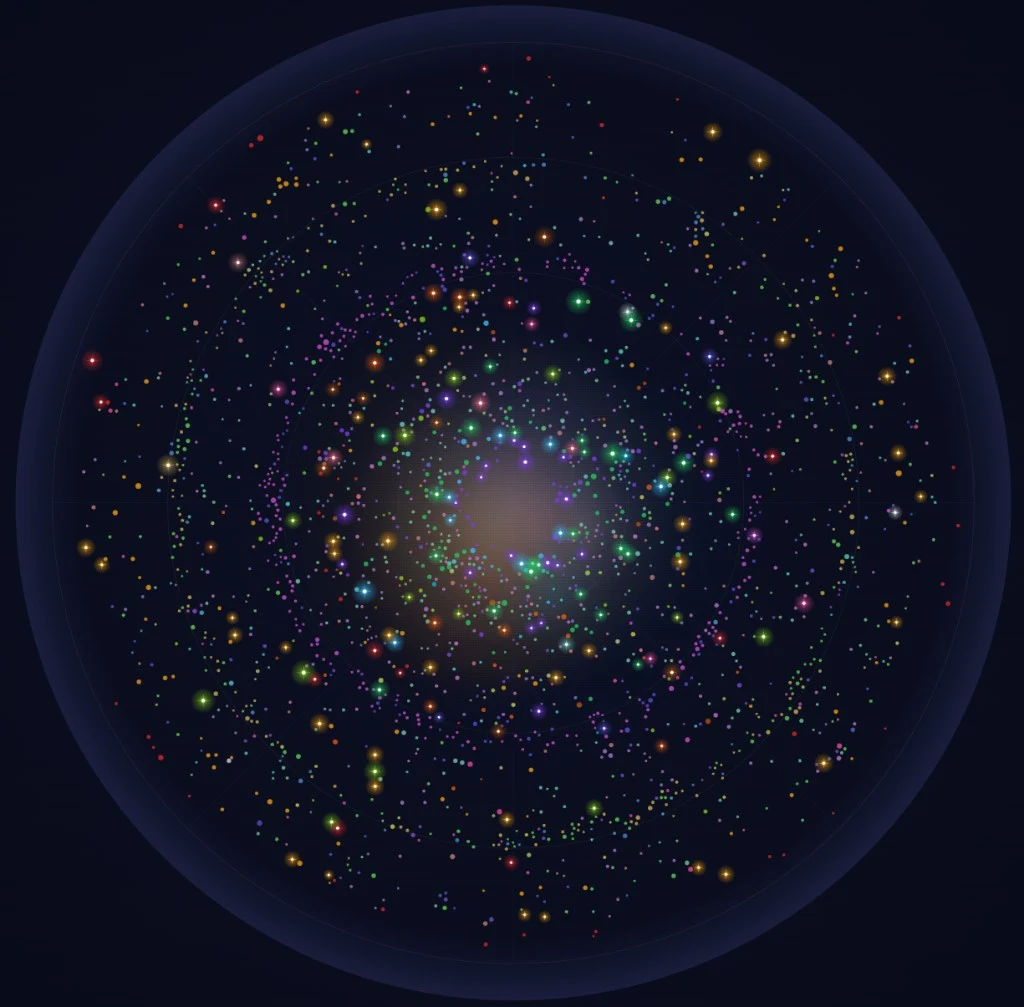
New in 4.3: open the Nebula tab in the Library (or the dashboard card) to see your whole collection as an interactive galaxy. Every track is a star: its angle follows the tempo (BPM) and its distance from the center follows perceptual energy — calm in the middle, energetic toward the edge. Coloured nebulae group tracks by mood.
Sonic Nebula — every track is a star, mapped by tempo and energy; nebulae group moods
Explore — drag to pan, scroll or pinch to zoom, and open it fullscreen.
Listen — click a star to play it, or start a local radio from that point in the galaxy.
Filter — narrow the map by mood, or hit Surprise me to jump to a random star.
tips_and_updatesUseful tips
Blocking tracks or albums from shuffle — when it helpsPlay buttons in Library — what they doMoods in LibraryNavigation, sync and track hints
Step 4
Player & Visualizer
The player is persistent and stays active while you navigate the app. It handles queue, shuffle, repeat (off / all / one), volume and restores your session on next launch.
tips_and_updatesUseful tips
Fixed order (playlist & album)Shuffle a whole setRadio from one trackShuffle inside one list onlyKeep the current queuePlayer shuffle toggleMobile player barVisualizerPlayback habits
Step 5
Studio
The Studio is RE-KORD's advanced workspace — downloads, metadata enrichment, cover art and library maintenance tools.
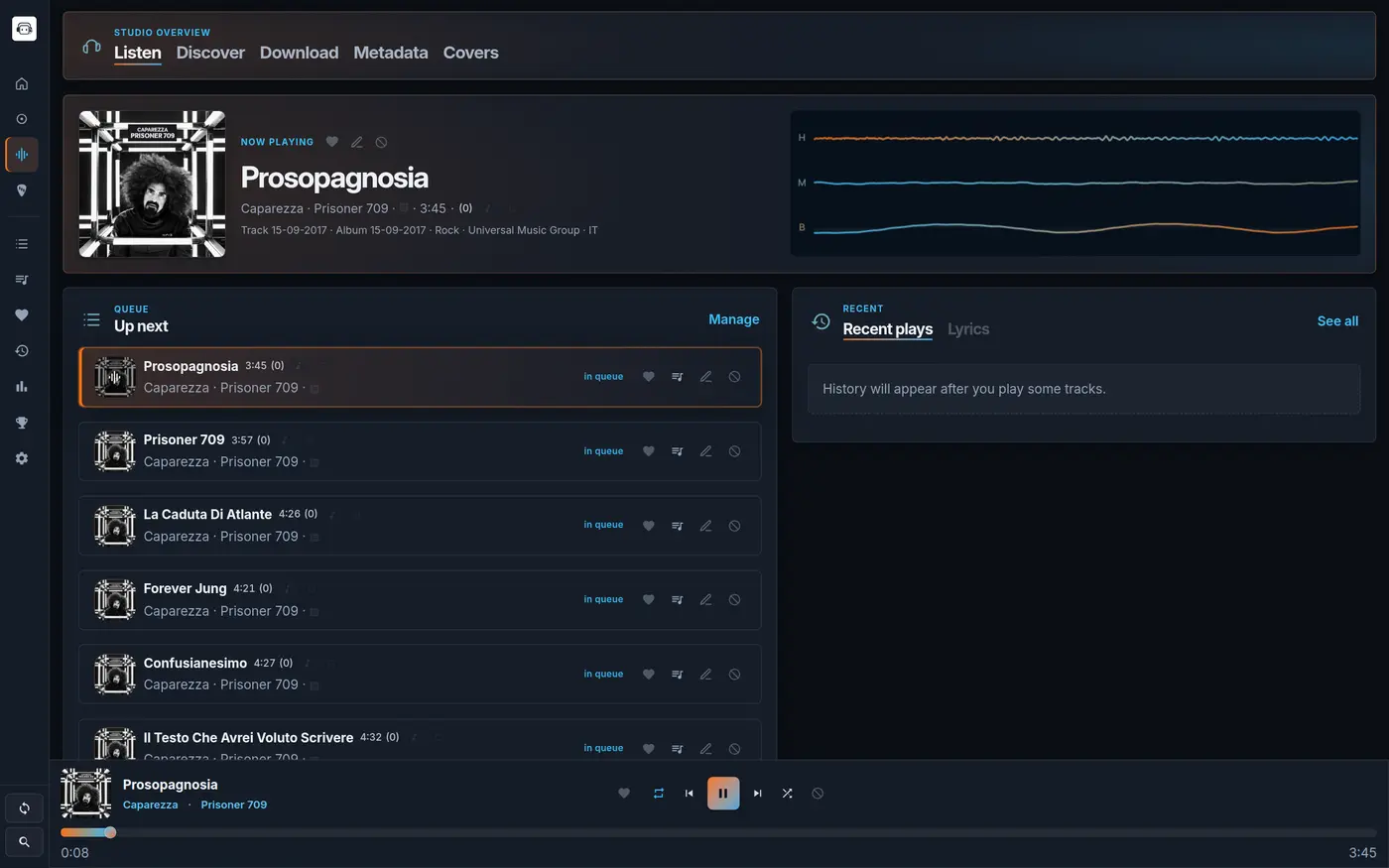
Studio → Listen: now playing, live queue and recent plays
headphones
Listen: guided listening experience inside the Studio, with live queue, recent history and synced lyrics.
travel_explore
Discover: local catalog suggestions and web suggestions with preview and direct download into the library.
label
Metadata: automatic enrichment via MusicBrainz / iTunes, heuristic title cleanup, bulk scan and orphan metadata pruning. After upgrading from 4.0, run Library metadata cleanup once in Studio → Tools to migrate legacy JSON sidecars into SQLite.
image
Covers: search and apply artwork to album folders directly from the dedicated tab.
tips_and_updatesUseful tips
Quality alerts → StudioMetadata, covers and Auto LRC
Step 6
Downloader (yt-dlp)
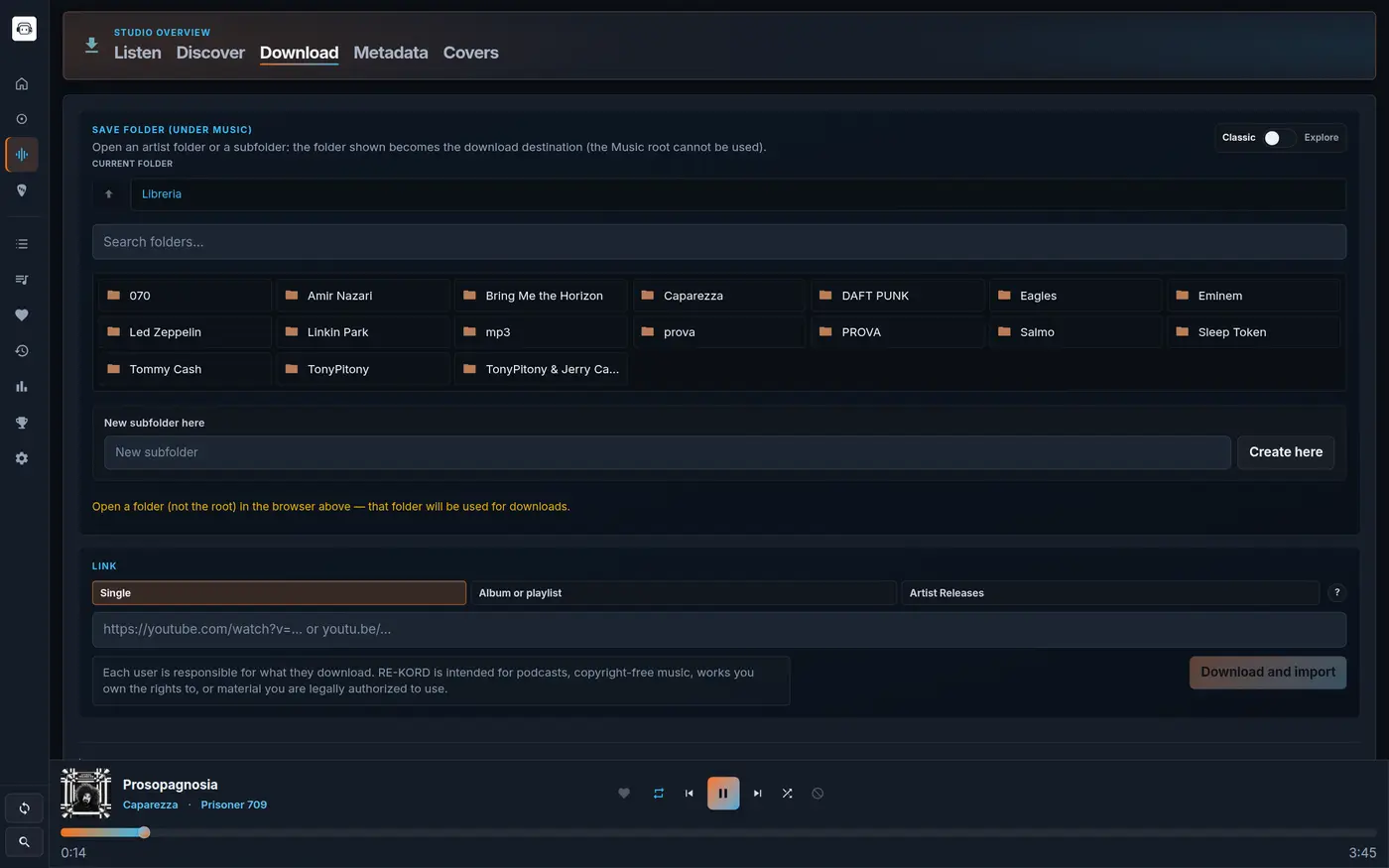
The Studio's Download tab uses yt-dlp — already bundled in the Server release — to download music directly into your library.
Studio → Download: pick the destination folder, paste a link
1
Open Studio → Download tab. Paste the URL of a track, playlist or channel.
2
Choose Classic UI (single URL, immediate) or Explore (advanced navigation of artists and playlists).
3
RE-KORD downloads in native AAC/Opus (m4a / webm) without ffmpeg. The file lands directly in your Music root folder.
tips_and_updatesUseful tips
Downloads and age-restricted videos
Each user is responsible for the content they download. RE-KORD is intended for podcasts, copyright-free music, works you own the rights to, or material you are legally authorized to use.
Step 7
Plectr — Rhythm Game
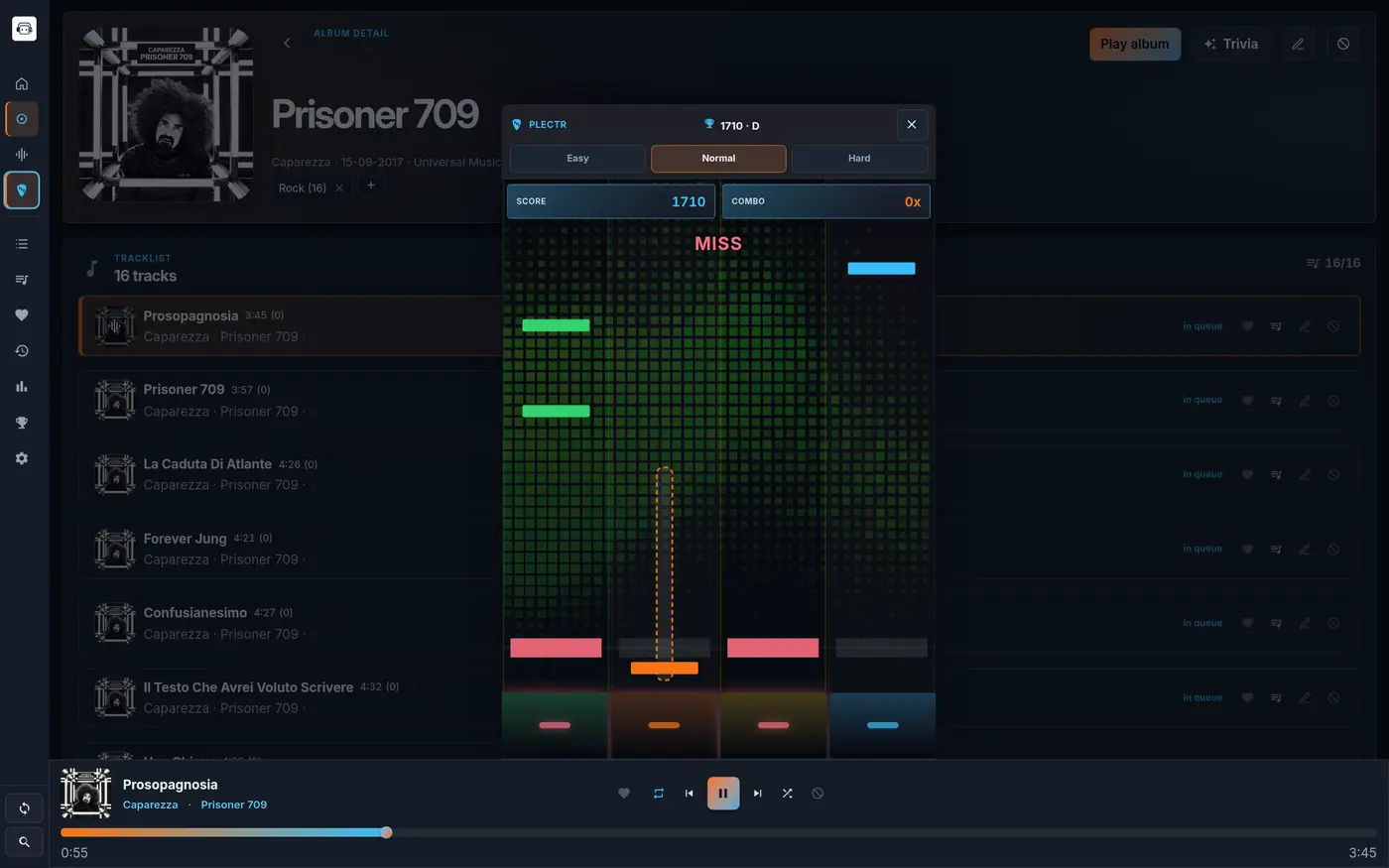
Plectr turns the track you are already playing into a rhythm game — no separate song selection needed.
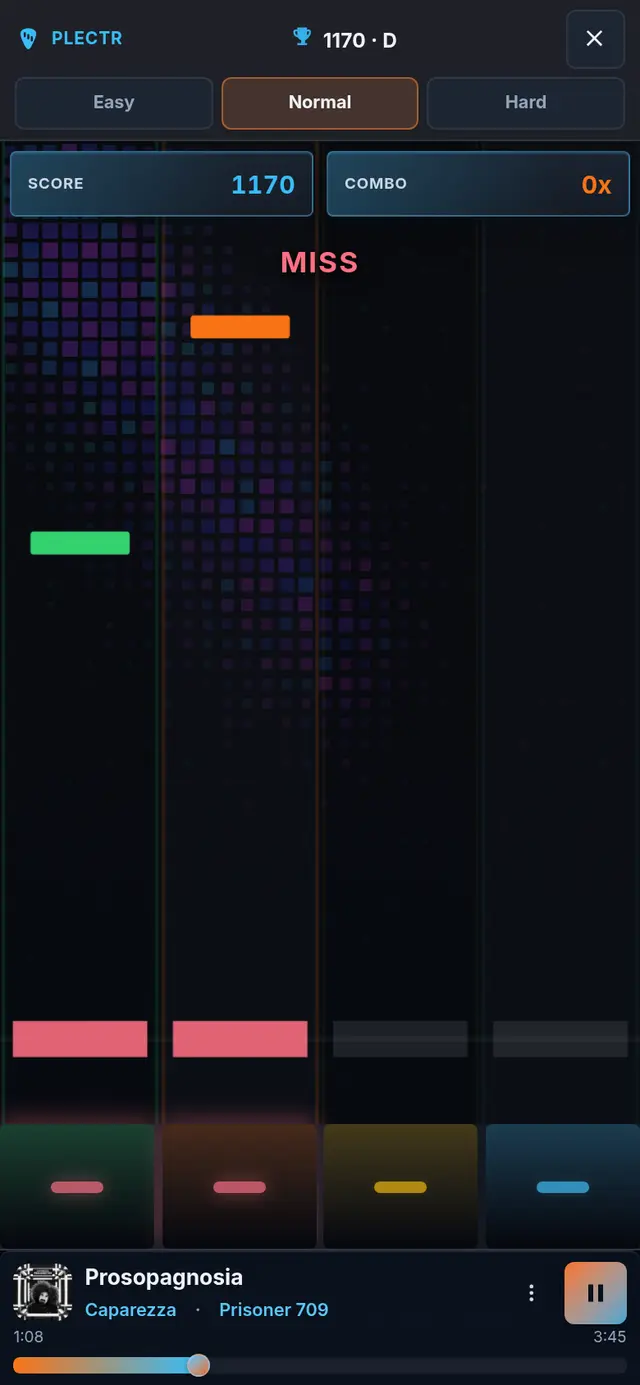
Plectr on Normal — the DiscoWall visualizer lights up behind the lanesOn your phone: four lane pads, same DiscoWall
sports_esports
How to start: open Plectr from the main navigation, or press P while the player has an active queue. The game follows the track currently playing.
graphic_eq
The chart: notes are generated from the audio analysis of that track. You hit them in time with tap, hold and swipe inputs — score, combo and accuracy update as you play.
tune
With the player: Plectr stays in sync with the player (play, pause, seek). Pick a difficulty when you start; each local profile keeps its own records per track.
tips_and_updatesUseful tips
Uses the playing trackControls
Step 8
LAN & Remote Access
The RE-KORD server listens on all network interfaces by default. Any device on the same Wi-Fi network can open the UI from a browser at http://<IP>:3001.
Settings → Network: LAN address, share state and the QR code the Android client scans to pair (URLs redacted)
router
LAN: works out of the box. Make sure your firewall allows traffic on port 3001.
cloud
Cloudflare Tunnel: from Settings, enable a public temporary URL (trycloudflare) or a stable named tunnel.
lock
To restrict access to localhost only, set REKORD_LISTEN_HOST=127.0.0.1 before starting the server.
tips_and_updatesUseful tips
Android app instead of the browserInstall as an app (phone)LAN access
Step 9
Local Profiles & Backup
RE-KORD supports multiple local accounts on the same machine. Each profile has its own favorites, playlists, stats, Plectr records and shuffle exclusions, stored under MUSIC_ROOT/.kord/ (local RE-KORD data).
tips_and_updatesUseful tips
Backup and activity log
Extra tips
Shortcuts and habits that don’t belong to a single section above.
Save queue as playlistAchievements and daily streakShare your theme
Customization
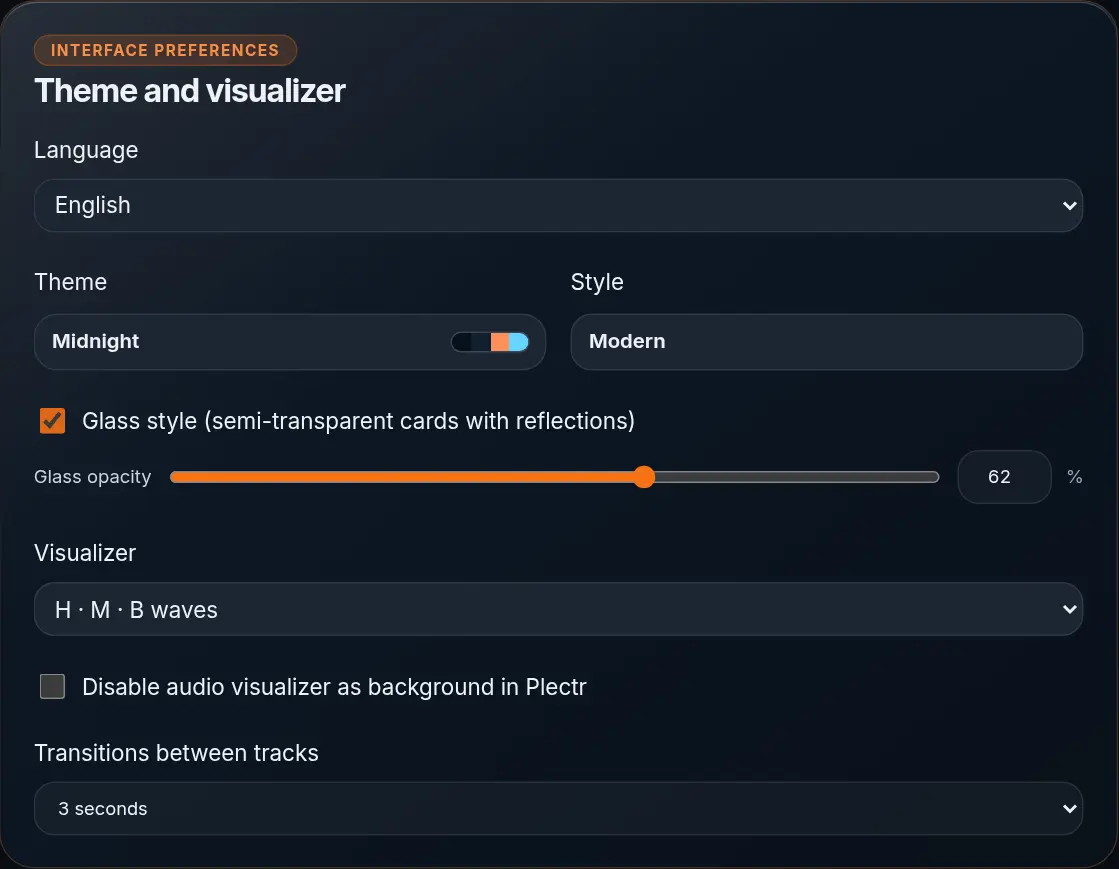
Choose a theme and a visualizer — the preview updates like in Settings → Theme and visualizer. Since 4.1 the app uses the unified Pro Workspace layout; Glass opacity is still adjustable there.
Midnight·Bars
Settings → Theme and visualizer: Modern style, Glass surfaces and opacityThe Library with Modern style and Glass surfaces on
Custom theme: pick Custom in the app to edit the four palette slots — or set an image as background. Glass opacity is adjustable in Settings and Modern softens the whole UI; you can also export and import themes as files to share your look. Karaoke shows synced LRC lyrics over a dimmed visualizer; DiscoWall is a reactive pixel grid — best in fullscreen while a track plays.
All clear?
Download RE-KORD and put this into practice. Found something that doesn't work? Open an issue on GitHub.